<< Summary
Drive a relay, in Java 
...and remote control your home's appliances
through email
What's a relay?
A relay can be seen as a remote switch. The switch can be triggered with a very small amount of current, and the current actually going through the switch can be much bigger.
The output of a GPIO pin (3.3 Volts DC) cannot be used to turn on a desk light (110 or 220 Volts AC); but it can be used to turn on a relay, which will turn the light on.
This relay has 5 pins. Two for the coil (the magnet that will turn it on or off), one for the common (the hot wire), one Normally Closed (NC), and one Normally Opened (NO). If you Google something like "Songle Relay Diagram", you will find tons of drawings.
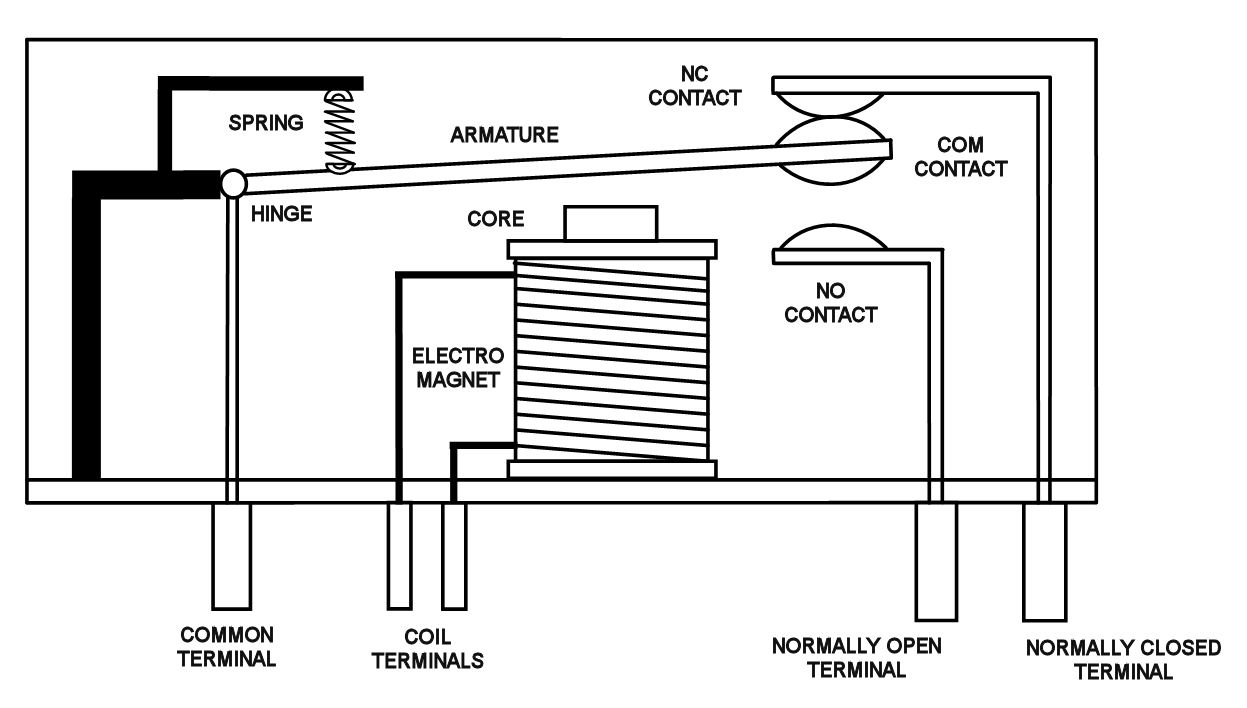
The coil (the actual switch, in fact) needs 5 Volts. The 3.3 Volts delivered by the GPIO pins of the Raspberry PI are not enough.
This is why we are using a relay board, where the coil is fed by the VCC (5 Volts), and GPIO pins (3.3 Volts) can be used to flip the switch. Those relay boards can host one or more relays (1, 2, 4, 8, etc).
Notice above on the left side:
+5V will be connected on the 5V of the Raspberry PI.
GND will be connected on the GND of the Raspberry PI.
IN will be connected to the GPIO pin flipping the switch.
Notice above on the right side:
COM will be connected to the appliance
NC or NO will be connected to the appliance
The switch actually sits between those two last terminals. The hot wire of the appliance will go through it.
The Hardware and the wiring
We have a relay board connected to the Raspberry PI, and an outlet and socket connected to the relay.
As we said above, the AC hot wire goes through the terminals on the right side of the relay. In this case, COM & NO, as we want the switch to be open when the relay is off (the appliance will be off).
Raspberry PI, Relay, Sockets, Outlets.
Once again, we need to be careful with the names of the pins on the GPIO header. The pin GPIO_0 is labeled #17 on the cobbler...
See this document, from the WiringPI site for details.
Raspberry PI, Relay, Sockets, Outlets.
This is a two-relay board, connected on two outlets.
The Software
The Raspberry PI interacts with the relay through a GPIO pin (#17, GPIO_0 in this case).
In addition, this interaction will be driven through email. It is very similar to what we have described
in this previous document.
As you would see in the code, it is all about agreeing on the structure of the messages to send and receive.
There is also a file named email.properties that defines (among others):
- Who the command email can come from
- What the subject should be
When an email from the listed users is received with the right subject, its content (that must be in plain text) is parsed as a json
object.
The two expected messages are
{ 'operation': 'turn-relay-on' }
and
{ 'operation': 'turn-relay-off' }
Anything else is ignored.
When a message is successfully received and understood, an acknowledgement is returned to the requestor.
Note: Make sure you send the email in plain text. In "rich" text mode, HTML tags are added, that will make the message ignored.
Bonus: an Android Client
Just to make user's life easier, we provide an Android client. Composing the email is the tricky part. If you screw it up, nothing will happen.
The Android client composes it for you.
Choose the app named "Home Remote Control"
|
This is the landing screen, tap it.
|
The buttons show up
|
Tap the "Turn On" button
|
A list of email client shows up
|
Choose Gmail
|
This is the message composed by the application, it is a json object.
|
Tap the "Send" icon
|
Message is being sent
|
Done! Back to base.
|
Live demo
If you have sent an email to turn the light on as previousliy described, here is what could happen:
Again, we are using emails here, to be able to control the devices (the relay here) from anywhere on the planet (anywhere you have an Internet connection). The drawback is that there is obviously some latency. The Raspberry PI is polling the dedicated indox of some dedicated email on a regular base. Another demo shows how to use HTTP for the same purpose, which will react much faster. Another - even faster - way to do it would be to use WebSockets (node.js runs just fine on the Raspberry PI, as demoed here).
Oliv did it